
Message templates let you save messages you send often and reuse them on any booking.
Where to find message templates
- App: open a message thread and tap + > Message templates. To create or edit templates, tap Manage templates.
- Web: in the sidebar, go to Marketing tools.
Create a template
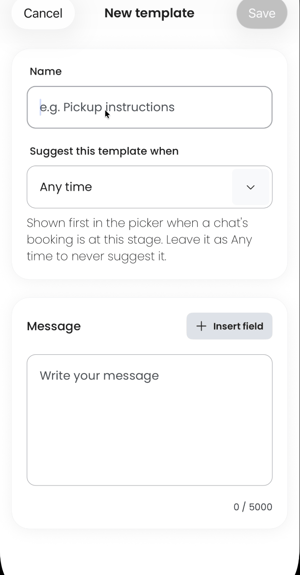
- In a message thread, tap + > Message templates > Manage templates, then tap New template.
- Enter a Name, for example Pickup instructions.
- Under Suggest this template when, choose a booking stage. The template is shown first in the picker when a chat's booking is at this stage. Leave it as Any time to never suggest it.
- Under Message, write your message. Tap Insert field to add details that fill in for each booking.
- Tap Save.
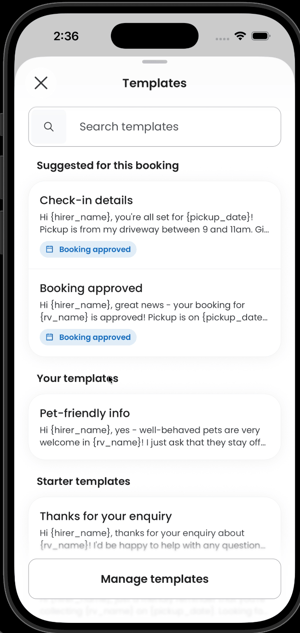
To start from a Camplify template, find it under Starter templates and tap Create copy.
Use a template
- Open the message thread and tap + > Message templates.
- Choose a template from Suggested for this booking, Your templates or Starter templates, or use Search templates.
- Check the message and send it.
Fields you can insert
- Always available: Hirer's first name, Your first name, Vehicle name and Discount code (one of your active discount codes).
- Only in booking chats: Booking ID, Pickup date and Return date.
Booking stages
Choose one under Suggest this template when.
- Any time: never suggested first.
- Pre-booking request: enquiries and requests waiting for your approval.
- Instant book: after an instant booking comes in.
- Booking approved: after you approve a booking request.
- Booking start: 10 days either side of pickup.
- Booking end: 10 days either side of return.
Limits
- Up to 30 templates.
- Up to 5000 characters per message.
- You send every message yourself. Nothing is sent automatically, and messages can't be scheduled.
- Links that are blocked in regular messaging are also blocked in templates.