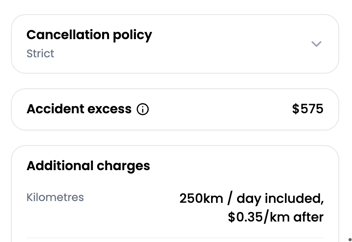
If you charge for extra kilometres, you'll now get paid for them faster. Until now, extra kilometre charges were processed alongside damage claims, so the money took longer to reach you. Now the charge is worked out from your pre-hire and post-hire checklists and sent to the hirer automatically.
How it works
- Pre-hire checklist: log the starting odometer reading and add a clear photo of the odometer, as you do now.
- Post-hire checklist: log the end reading. The app works out the distance travelled and the hirer's allowance, and calculates any extra kilometre charge.
- The hirer approves: the charge goes straight to the hirer. If they accept, it's processed automatically. If they haven't responded within 48 hours, they're charged automatically.
- You get paid: the charge is processed as normal into your pay run.
- Charges: You can choose to reduce the calculated charge should you wish to but you can not increase the calculated charge.
- Resolved privately: If Camplify Assistance is not required you can select resolved privately.
If the hirer queries the charge, our resolutions team steps in to help. A clear odometer photo at departure and an accurate reading on return are what keep queries from happening.
Set your kilometre allowance
If your hiring rules include a daily kilometre limit with a charge for extra kilometres, add it to your listing. This is what switches on automatic calculation and charging from your next booking.
- Log in to your owner account and go to Listings.
- Select Manage Listing on your RV, then Extra charges in the left-hand menu.
- Under Kilometre Allowance, choose Custom.
- Enter your Daily km allowance (for example, 200) and your Excess rate per km (for example, $0.50).
- Select Save & continue.
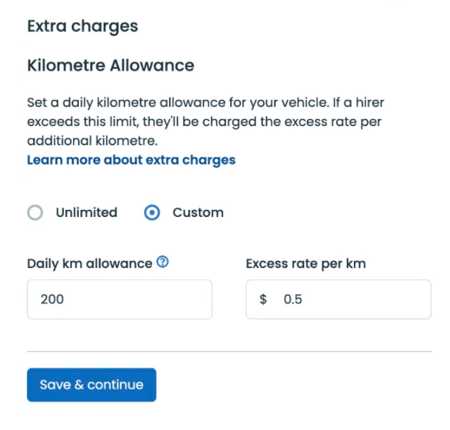
If you don't limit daily kilometres, choose Unlimited.
As per Terms and Conditions, RV owners will be paid any additional charges once we’ve collected them from the hirer.
What hirers see
Hirers now see your kilometre allowance and your rate per extra kilometre up front, both on your listing page and while they book.